Guide · Lecture Recorder and Voice
Voice Control
Capture class with Lecture Recorder, then study out loud with Voice. Keep your transcript and takeaways, ask questions, and control your study session by speaking.
Runs on your own free Google Gemini API key. Audio streams to Google for transcription and is saved only on your device.
§ 1 · Prepare
Start from the lecture itself.
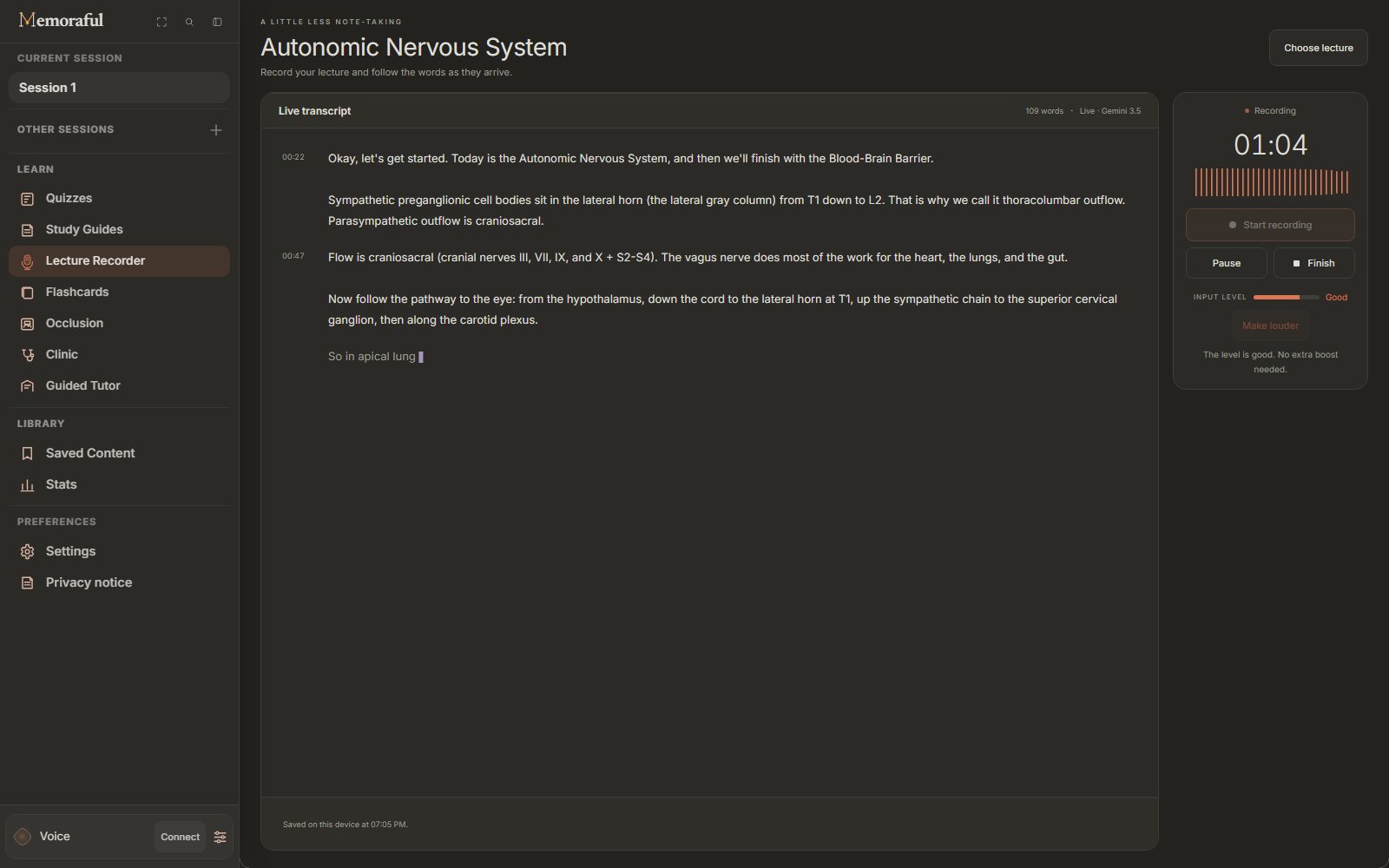
Open Learn → Lecture Recorder and choose a lecture from your session, or upload one: slides, a PDF or a Word document.
Press Prepare once. Memoraful reads the lecture for the words a transcript tends to get wrong, such as structures, drugs, abbreviations and names, and gives them to the transcription model before you start. When it finishes, the recorder opens on its own.
Preparing takes seconds, and you can cancel it at any time.
§ 2 · Record
Listen. It writes.
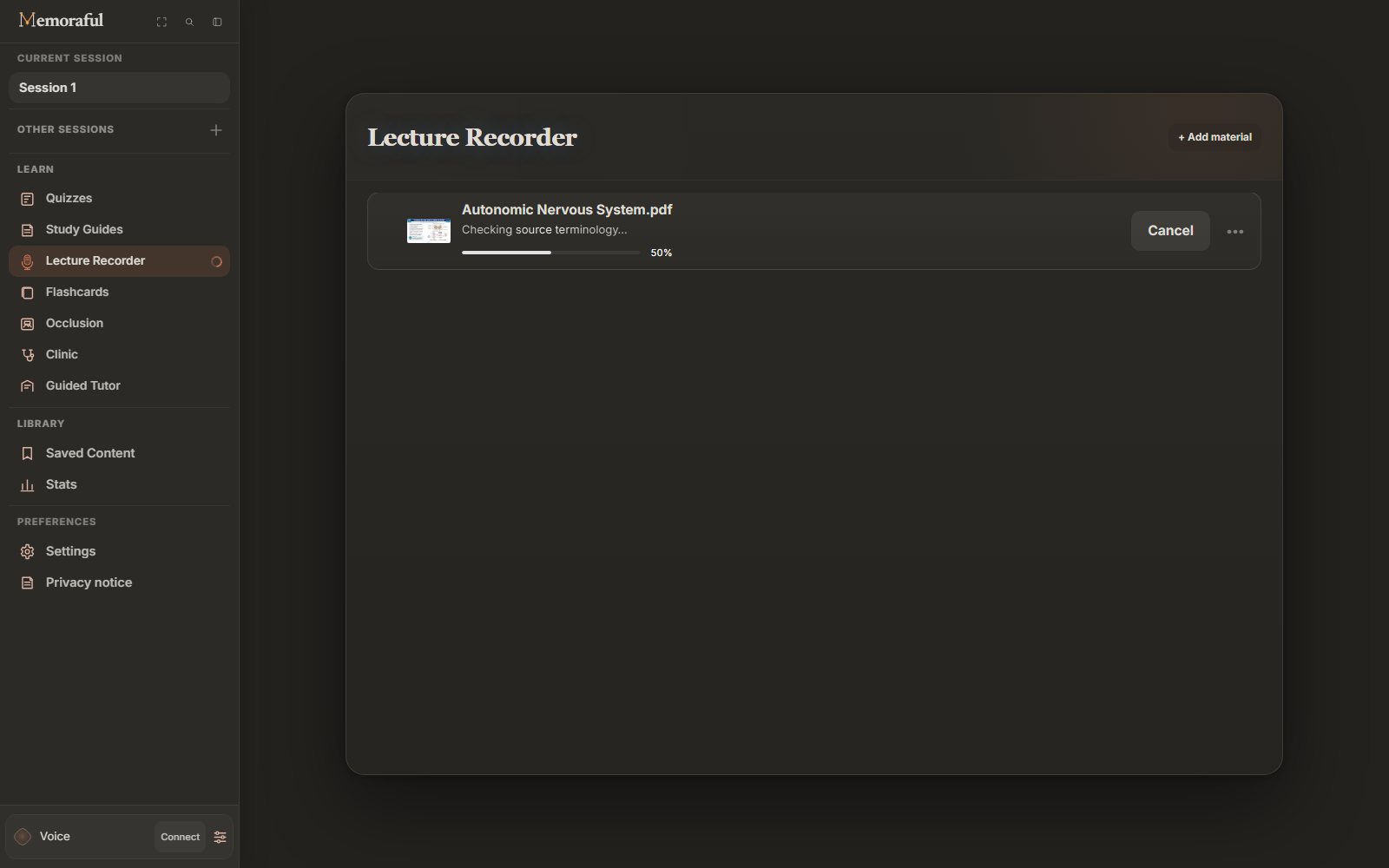
The transcript is the whole screen, and the controls stay small beside it on a computer or below it on an iPad.
- Watch the input level.The volume adjusts on its own, even from the back of a lecture hall: quiet speech is raised, loud moments are turned down, and a silent microphone is swapped for another one automatically.
- Pause when class does.Pause mutes the microphone and sends nothing; Resume picks up in the same recording.
- Keep going through a dropped connection.Recording never stops on your device. The transcript reconnects on its own and catches up on the audio it missed, up to two minutes.
- Finish.The microphone is released, the last words are written, and the recording is saved before anything else happens.
§ 3 · Finish
Leave with the lecture.
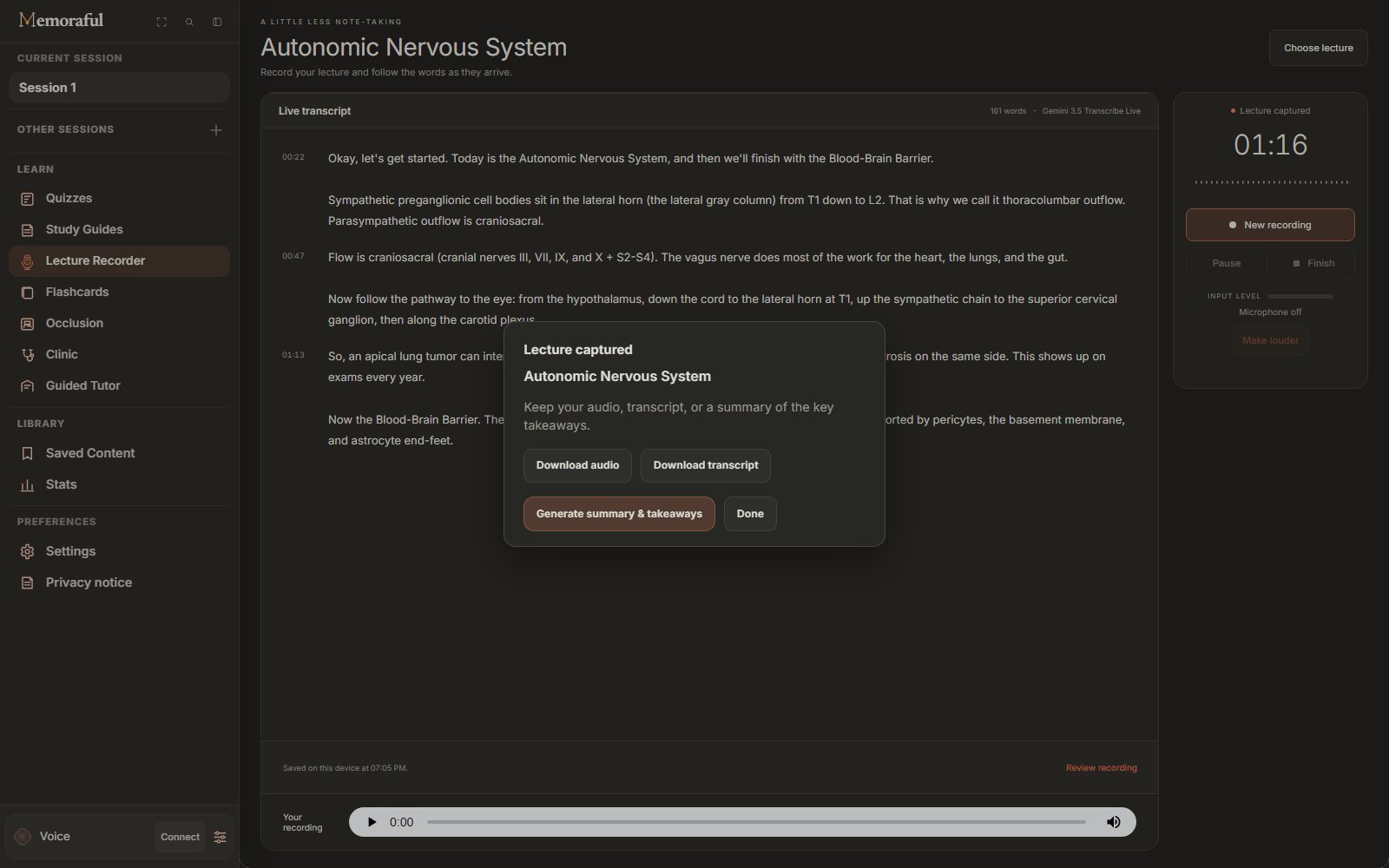
Finish opens one small window with everything you can take away.
- Download audio: the full recording, including any stretch the transcript missed.
- Download transcript: every finished passage with its timestamp, as a text file.
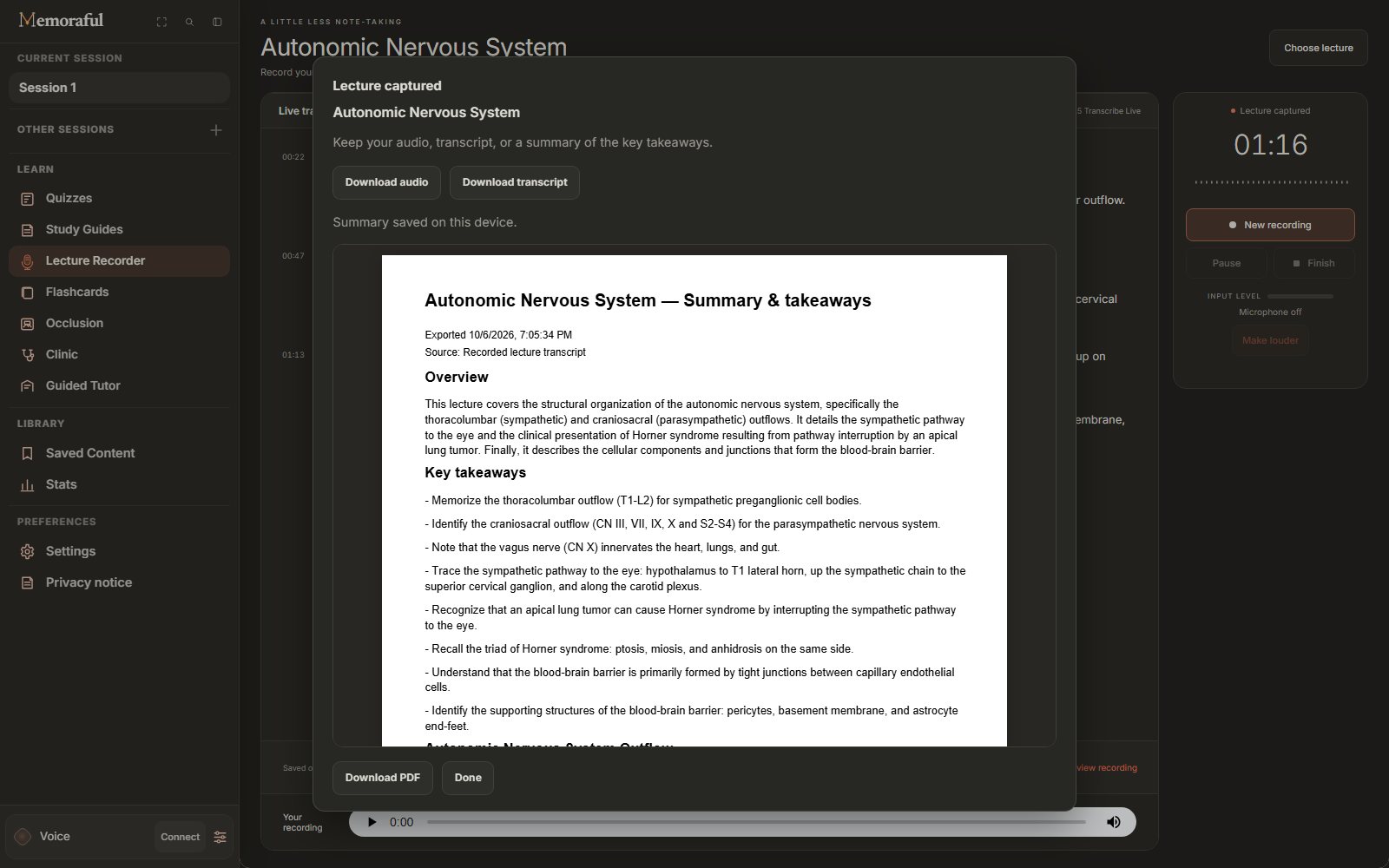
- Generate summary & takeaways: an overview, the key takeaways and short topic sections, written only from your transcript. Anything unclear in the recording is flagged, not guessed.
The summary is previewed page by page and downloads as a PDF.
§ 4 · Saved
Close the tab. It is still there.
Your recording is saved in your browser on this device every 30 seconds, and again when you finish. Come back later and choose the lecture: the transcript, the audio and any summary reopen with it, and Finish's window is one click away.
Recordings also appear in Saved Content, under Transcripts, with their summaries under Artifacts, each with its downloads. Nothing is uploaded to Memoraful; clearing your browser's site data erases the recordings, and a new recording of the same lecture replaces the last one.
§ 5 · Voice
Study out loud.
Connect Voice and talk to Memoraful, or type into the same conversation when you are in a library. It works on whatever screen you are on.
Things you can say
- "Quiz me out loud, five questions." It reads each question and its choices, takes your answer as a letter, and explains the ones you miss.
- "Go through my flashcards." It reads the front, waits for your answer, then reveals the back and rates the card.
- "Pull up the slide on Horner syndrome." It finds and opens the slide.
- "Put slides 2 and 5 side by side."
- "What are my weakest topics?" It reads your Stats back to you.
- "Make a comparison table of sympathetic and parasympathetic outflow." The artifact is saved to Saved Content.
- "Save that to my notes." Or "Add my anatomy practical on the 16th."
- "Is that still the current guideline?" It searches the web and names the sites it used.
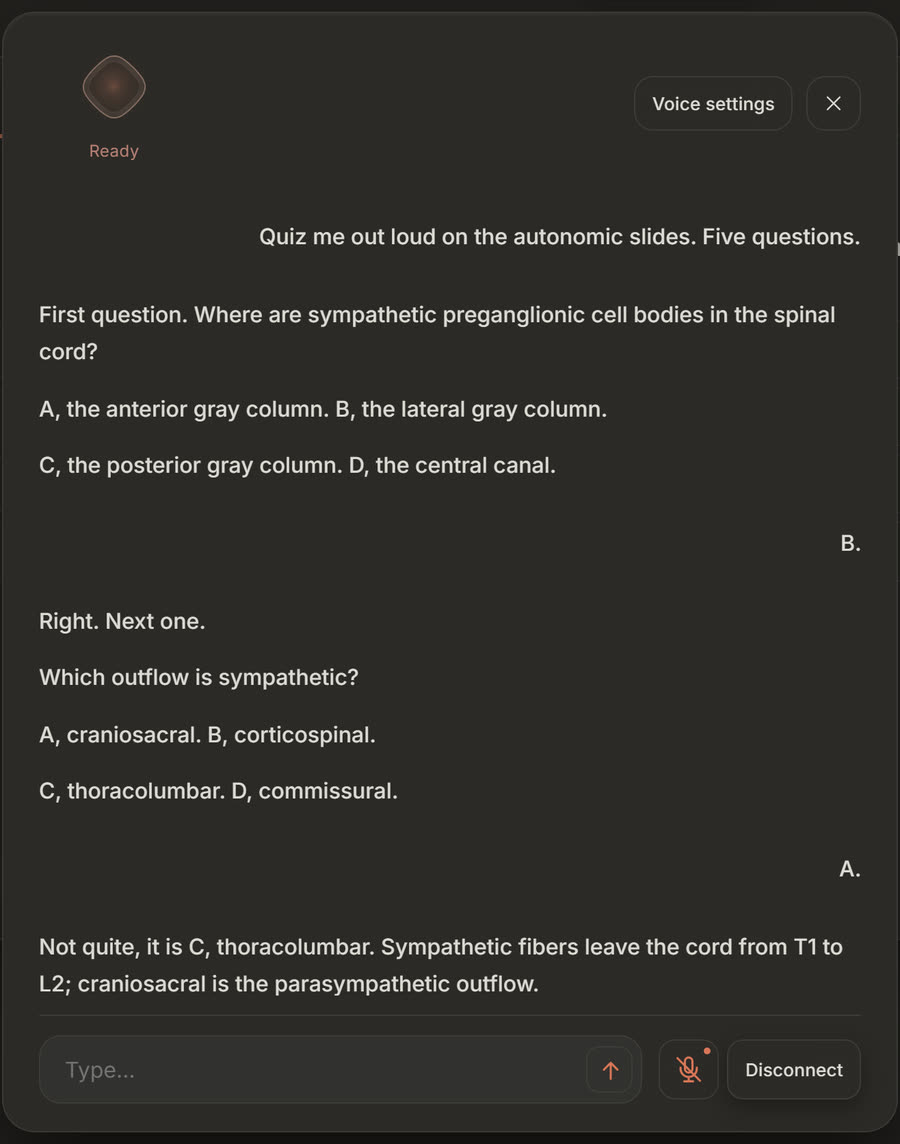
Voice runs on your own free Google Gemini API key. Adding one in Settings takes about 10 seconds. Quizzes and Ask Memoraful work without one.
§ 6 · Who it is for
Anyone who would rather listen.
Medical and dental school
Hours of lecture a day, full of terms a generic transcript mangles. Preparing the slides first keeps the vocabulary right.
Nursing and PA programs
Record the review session, then turn its transcript into a one-page PDF of what was stressed.
Students who take slow notes
Stay with the lecturer instead of the keyboard, and check the timestamped transcript afterwards for what you missed.
Anyone studying from slides
The recording lives beside the lecture it belongs to, next to that lecture's quizzes, guide and cards.
§ 7 · Questions
Before you record.
Do I need my own key?
Yes. Lecture Recorder runs on your own free Google Gemini API key, added once in Settings → AI. The key stays in your browser.
Where does my audio go?
While you record, audio streams to Google for live transcription. The audio and transcript are saved in your browser on this device; they are not uploaded to Memoraful.
What happens if the Wi-Fi drops?
Recording keeps going on your device. The transcript reconnects on its own and catches up on up to two minutes of buffered audio. For a longer outage, the downloaded audio still has the whole lecture.
How is the recording saved?
Every 30 seconds while you record, and again when you finish, in your browser on this device. Come back later and it is there, in Lecture Recorder and in Saved Content. Clearing your browser's site data erases it, and a new recording of the same lecture replaces it.
What is in the summary?
An overview, the key takeaways, short topic sections and any passages that were unclear in the recording. It is written only from your transcript, never from outside knowledge, and downloads as a PDF.
Does it work on an iPad?
Yes. Lecture Recorder works on computers and iPads. The study workspace is not available on phones.
Do I have to talk to use Voice?
No. The Voice panel has a text box, so you can type the same requests and read the replies.
Does Voice use my lecture or the internet?
Both, depending on what you ask. Ask what your lecture says and it searches your slides and names the slide. Ask for current or outside information and it searches the web and names the sites it used. General explanations come straight from the model.
Is Voice free?
Voice runs on your own free Google Gemini API key, so it does not use the shared daily allowance. Google's own free-tier limits apply to your key.
More guides
Keep going.
Hear it once. Keep all of it.
Bring the slides to class. Memoraful keeps the words.